Tap once, set up forever.
This is the one piece of setup Zadd can't do for you — Apple doesn't allow any app to create a personal automation on your behalf. Nine steps in the Shortcuts app, two minutes, once. Every screenshot below is the real flow. The app walks you through the same steps in Profile → Automatic Logging, with a built-in check that proves it worked.
Part one — card taps
The instant you tap your iPhone, the purchase lands in Zadd.
Open the Shortcuts app
Shortcuts is an Apple app that's already on your iPhone — it lets things happen automatically. Open it and tap Automationin the bottom bar. (From inside Zadd, the tutorial's “Open Shortcuts” button jumps you there.)
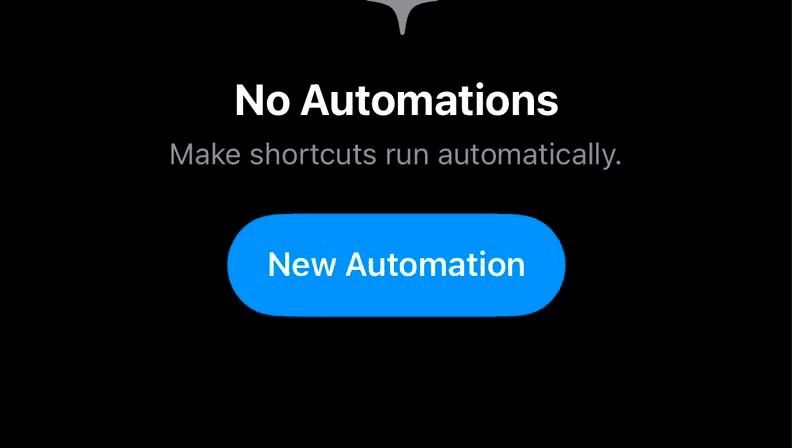
Tap “New Automation”
On the Automation page, tap the blue New Automation button. (Already seeing a list of events? You're ahead — go to the next step.)
Choose “Wallet”
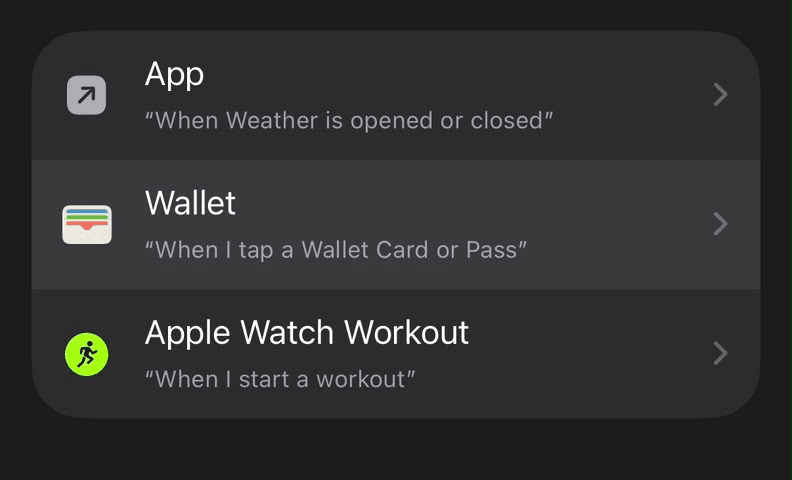
Shortcuts shows a list of events that can start an automation. Find the Wallet row — “When I tap a Wallet Card or Pass” — and tap it.
Tick your cards
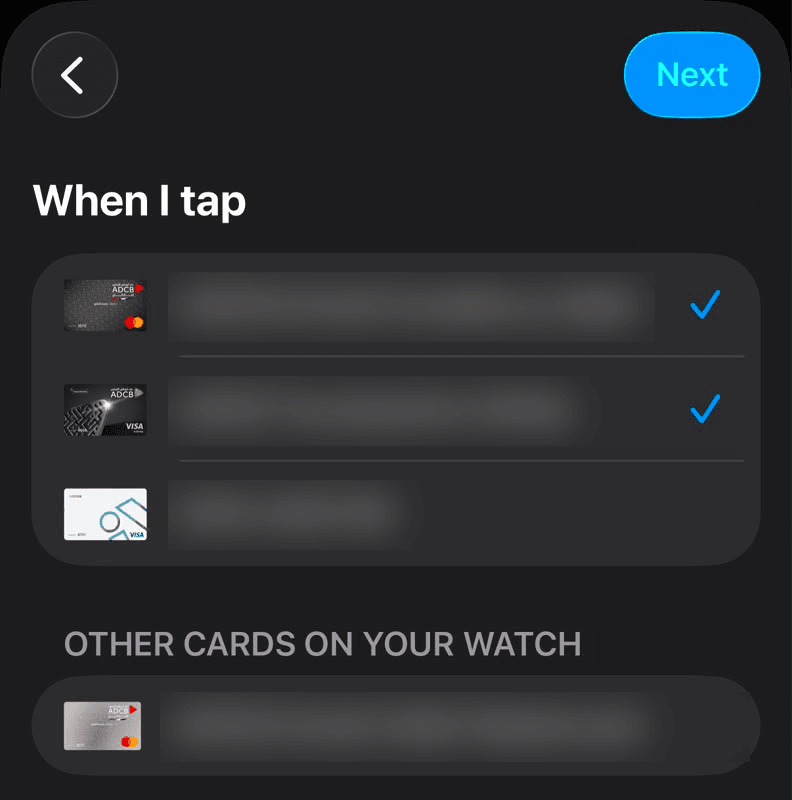
You're on a screen called “When I tap”. Tap each card you pay with, so a blue tick appears next to it. The category list below is already all ticked — leave it exactly as it is.
Set it to run silently
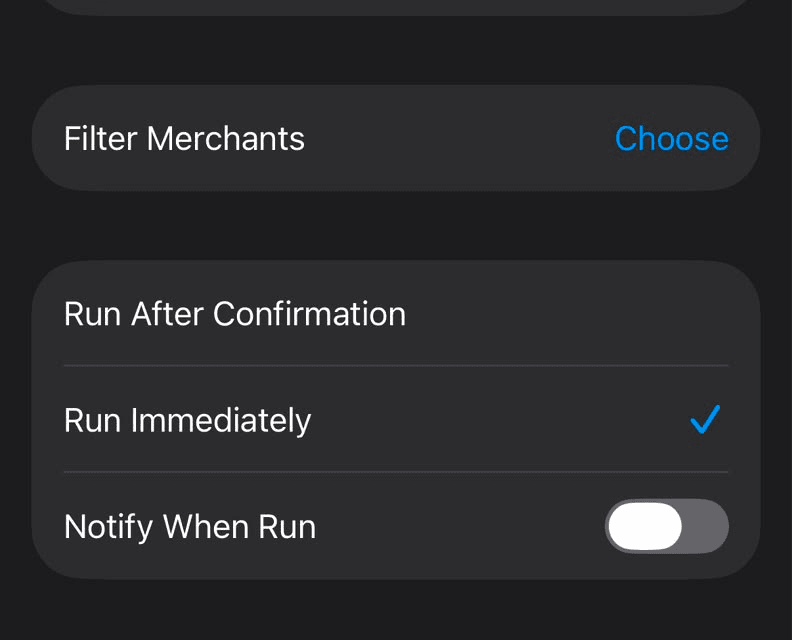
Scroll down: pick Run Immediately, and leave Notify When Run off — the purchase still logs, without a banner. Then tap Next.
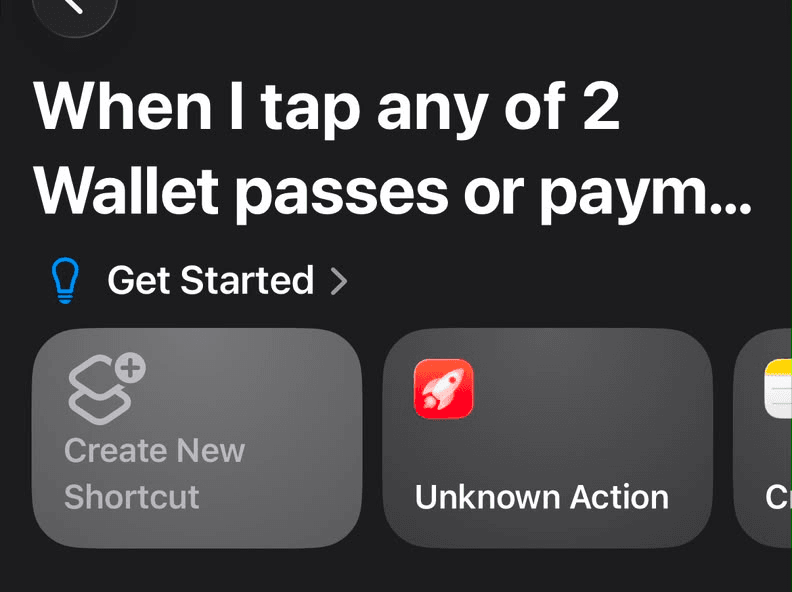
Create New Shortcut
On the next screen, tap Create New Shortcut.
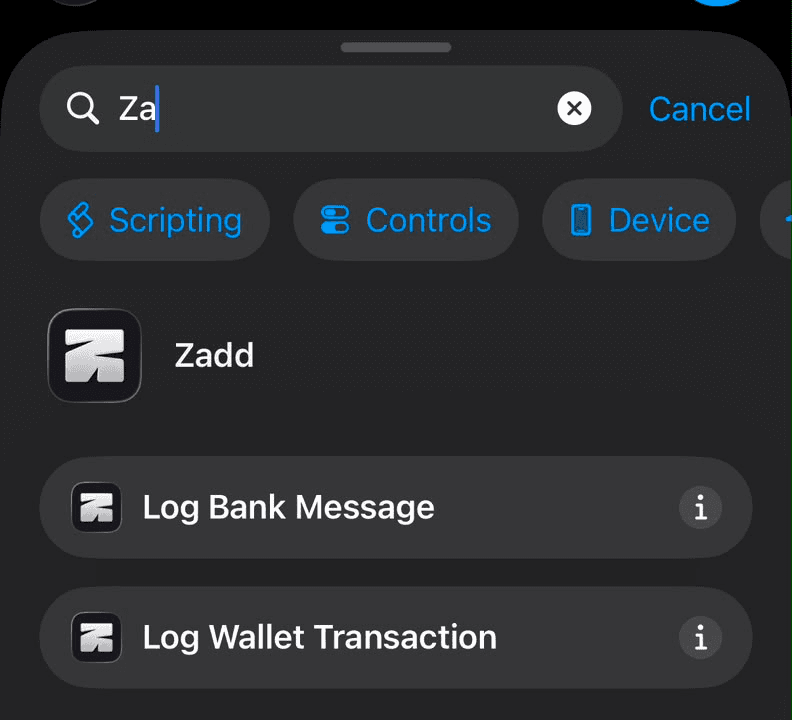
Add the Zadd action
Type “Zadd” in the search box. Two actions appear — tap Log Wallet Transaction (not Log Bank Message).
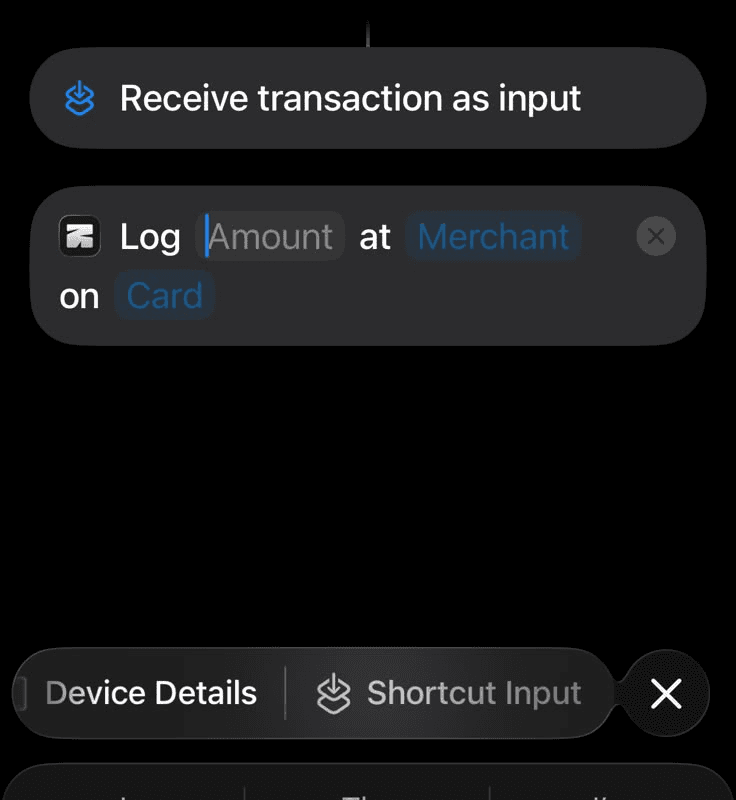
Point the fields at Shortcut Input
The action reads “Log Amount at Merchant on Card” — the three blue words are blanks to fill. Tap the first one: a bar appears above the keyboard. Tap Shortcut Input on that bar. Do the same for the other two blanks.
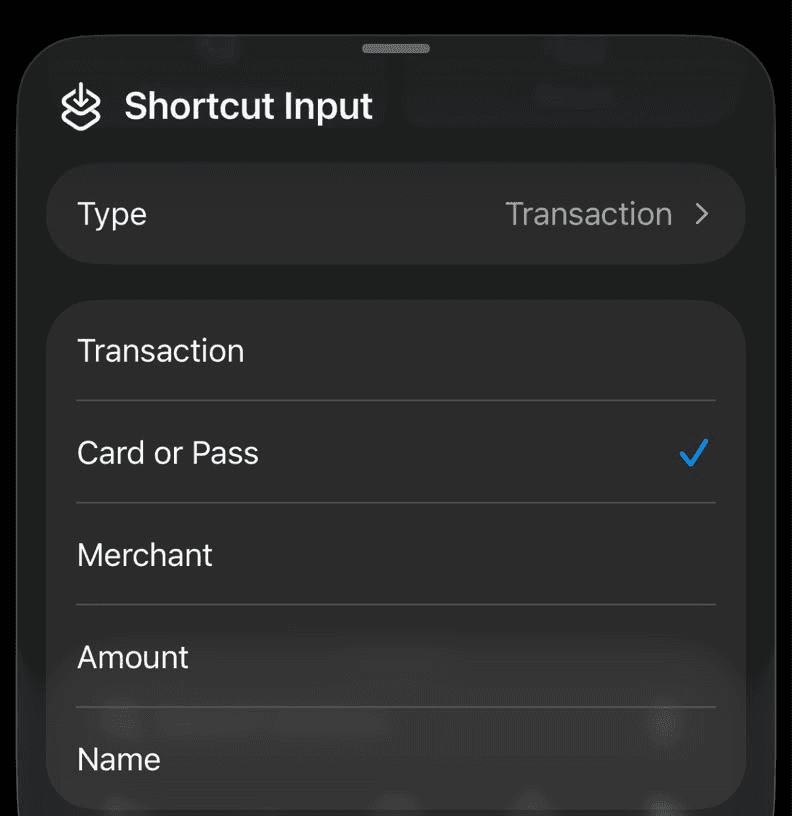
Tell each one which part
Each blank now says Shortcut Input. Tap the first one again — a menu opens. Choose Amount. Repeat for the others: Merchant, then Card or Pass. Finish with the blue tick, top right.
Done — now prove it
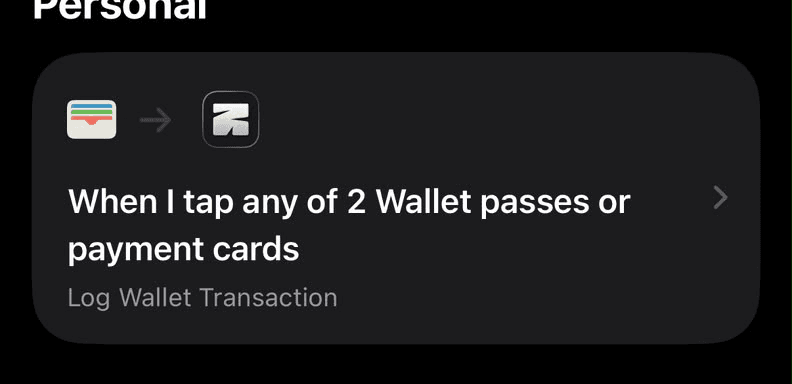
Your automation should look like this. Buy anything with your card — even a coffee — and it's in Zadd before you pocket the phone. The in-app tutorial's “Did it work?” check (Profile → Automatic Logging) confirms the pipe is live. Two honest limits: it catches in-store taps from your iPhone — not online payments, not the Watch — and Apple sometimes delivers a tap a few seconds late.
Part two — bank messages
Your bank texts you for every card purchase, transfer and online payment — this automation reads those receipts. Either automation works on its own; together they miss almost nothing. Only bank-style alerts are kept — verification codes and personal chats are destroyed on your phone, instantly. When Zadd reads an alert, a small slice of your last ten days goes with it: amounts, dates, and the last four digits of your cards. Never merchant names, never balances. It's how Zadd tells a payment you already logged from a new one.
Tap “New Automation” again
Back on Shortcuts' Automation tab. If you already have automations, the button is a + at the top right.
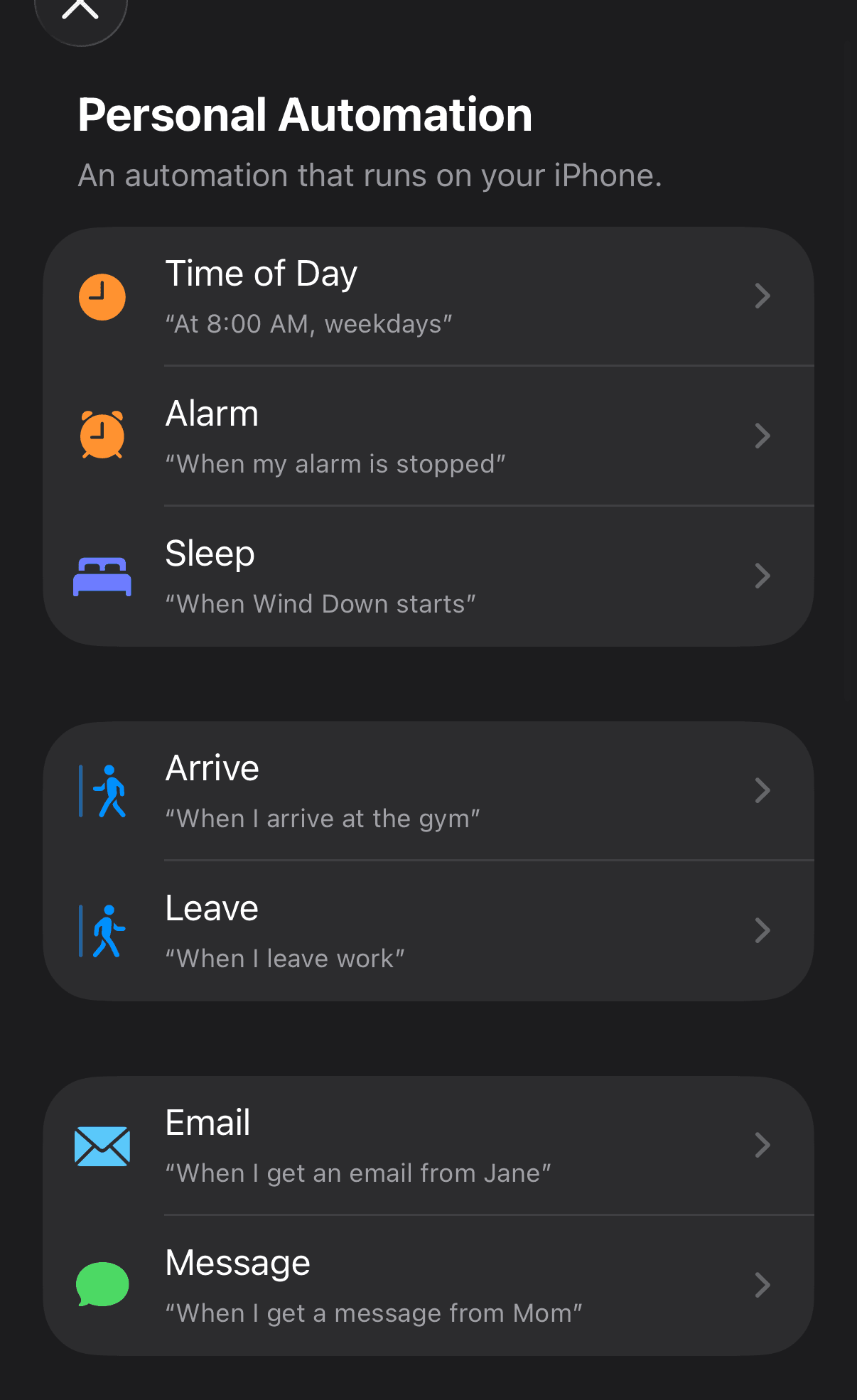
Choose “Message”
In the event list, find Message — “When I get a message from Mom.”
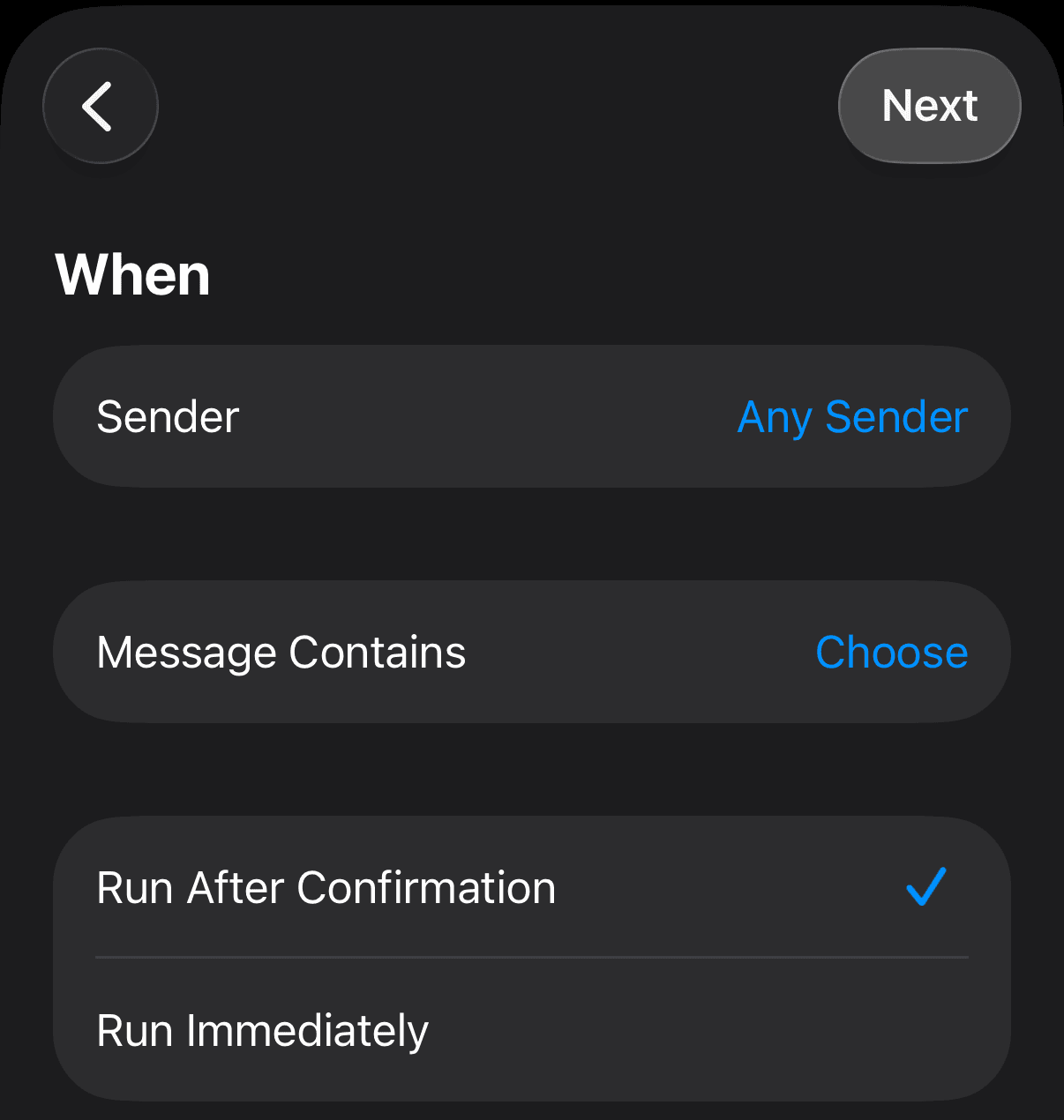
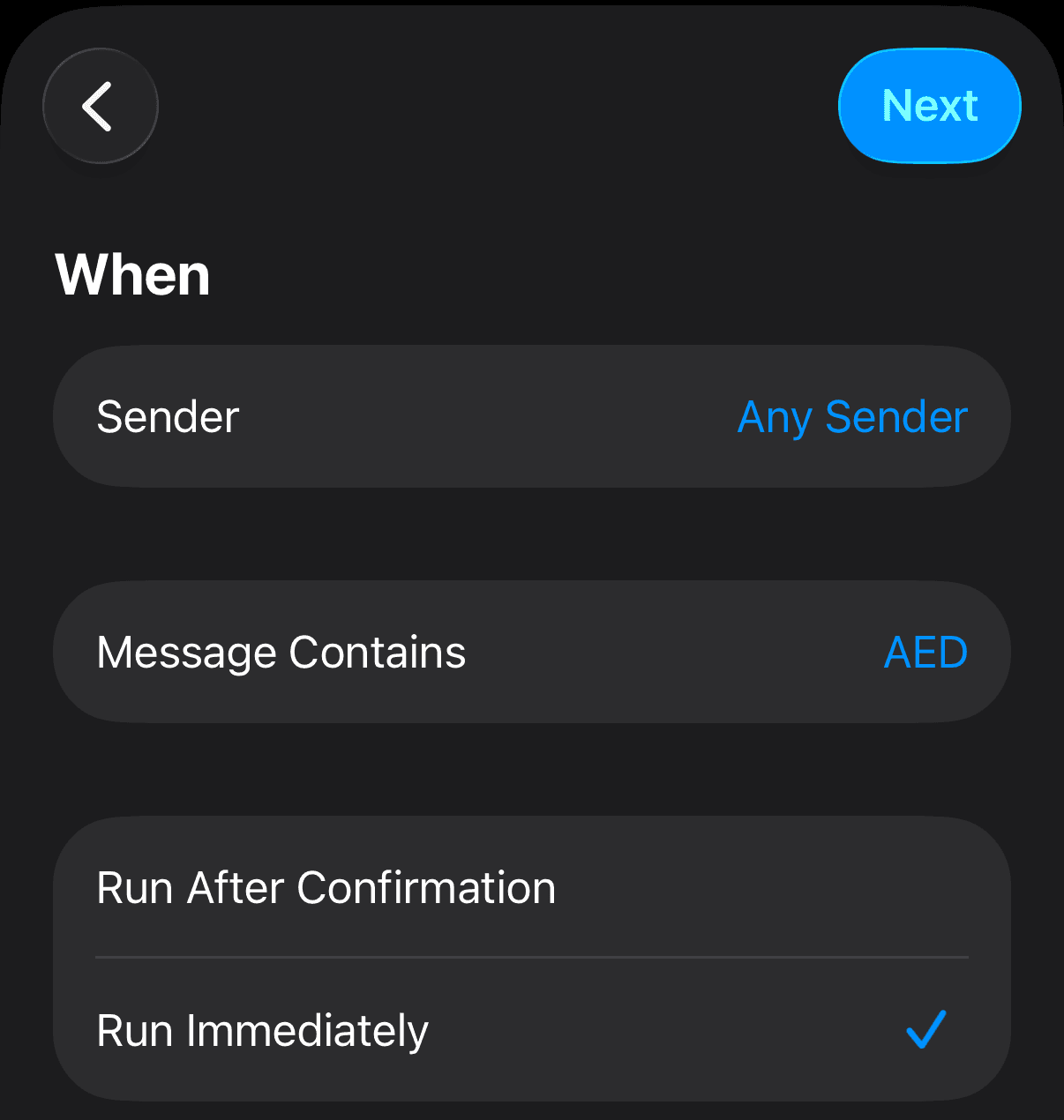
Tap “Choose” next to Message Contains
Leave Sender on Any Sender— Zadd does the filtering on your phone, so it works for every bank you'll ever have.
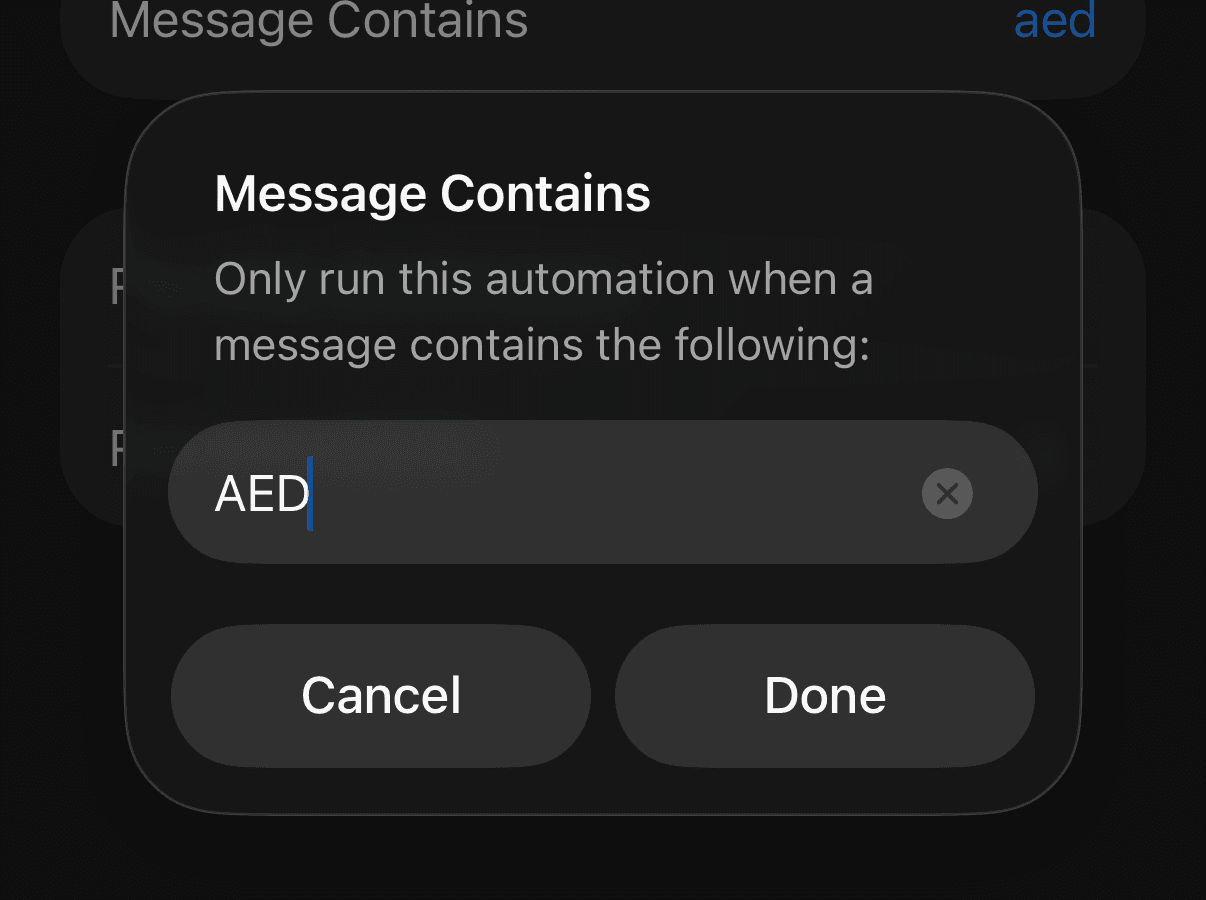
Type AED, then tap Done
Every UAE bank alert carries it. If your bank writes Dhs instead, add a second automation for that word later — same steps.
Tick “Run Immediately”, then Next
Top right. No confirmation prompts — alerts log silently.
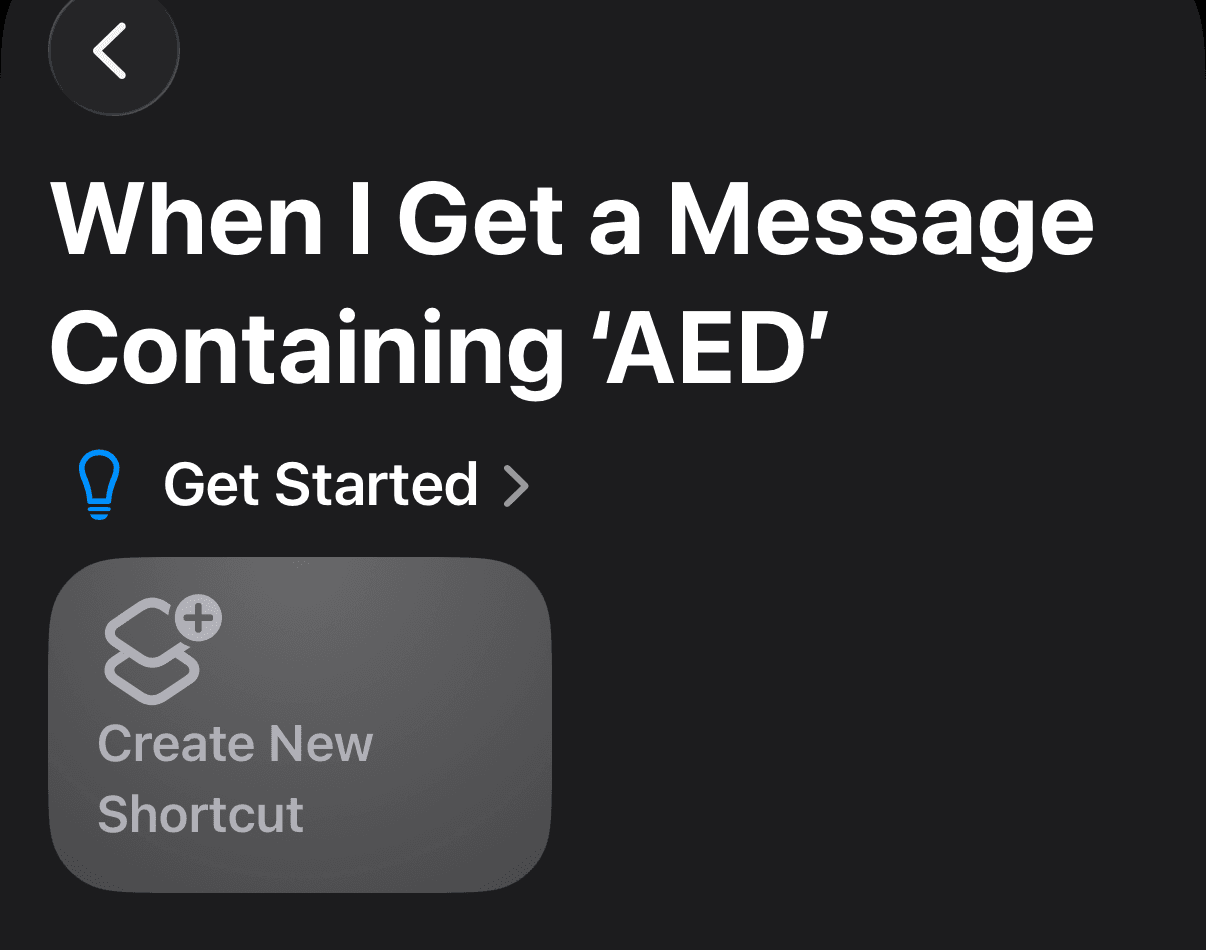
Tap “Create New Shortcut”
Top left.
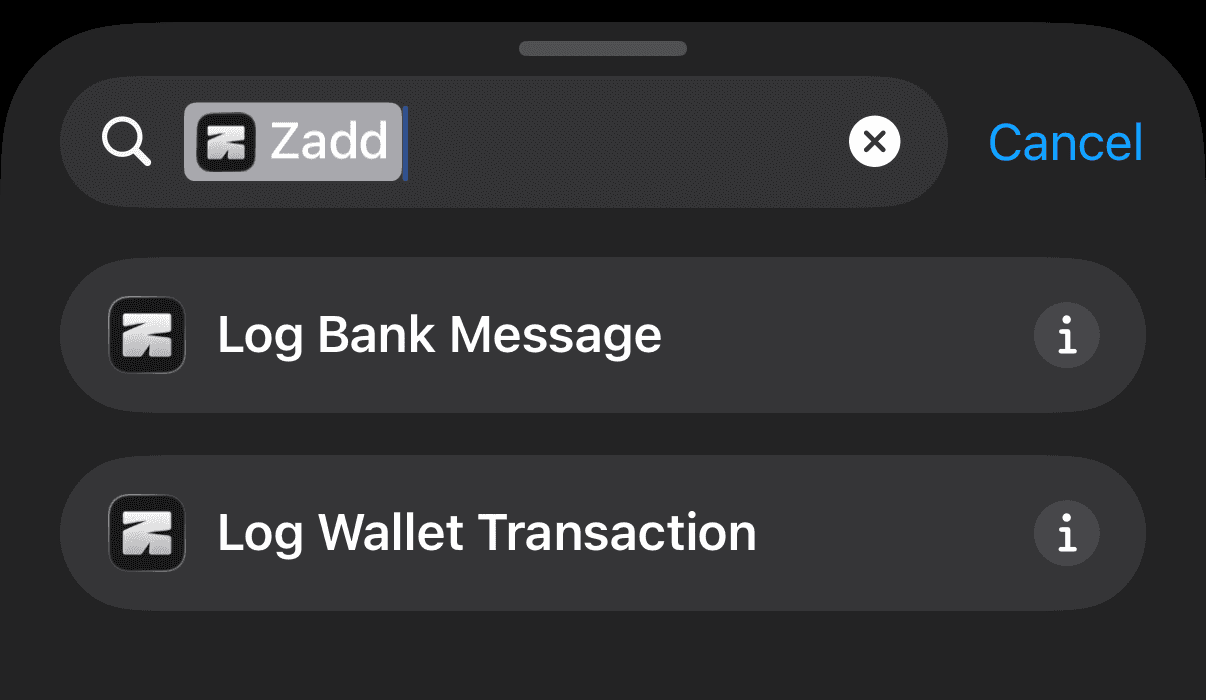
Pick “Log Bank Message”
Search Zadd in the actions drawer. Not Log Wallet Transaction this time.
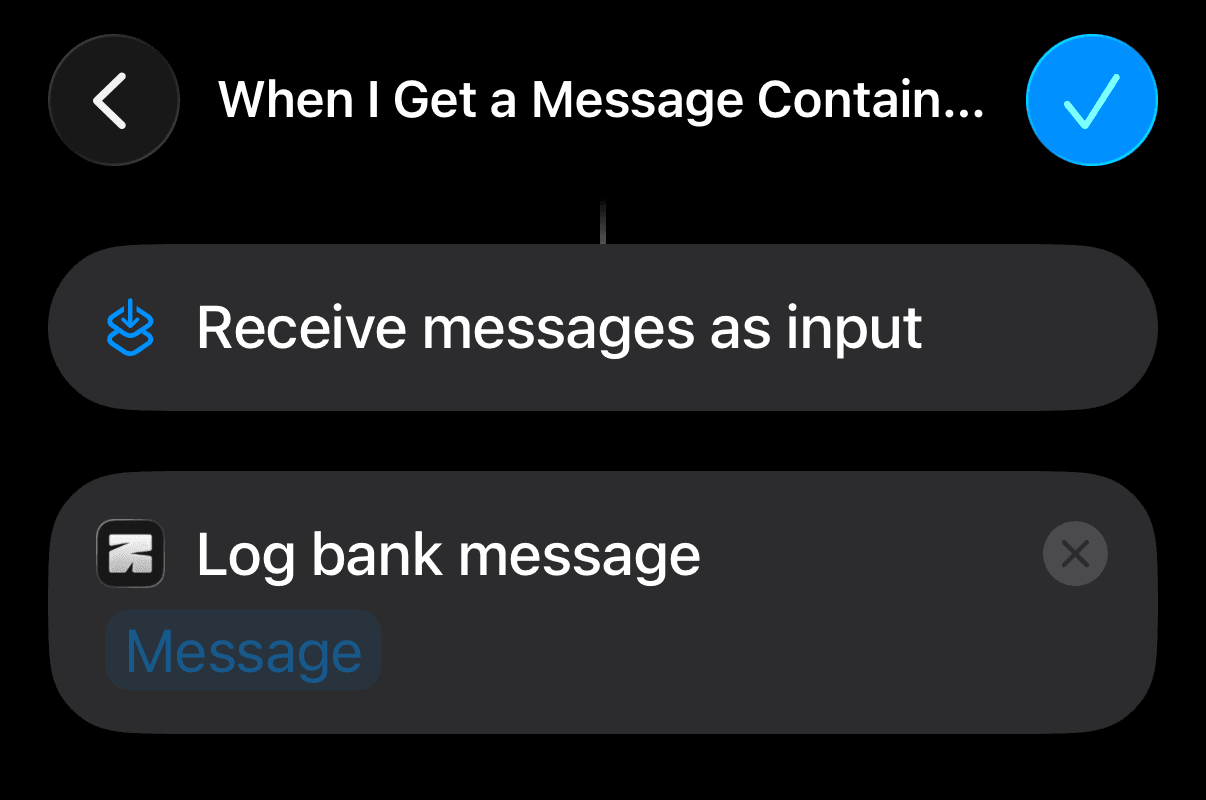
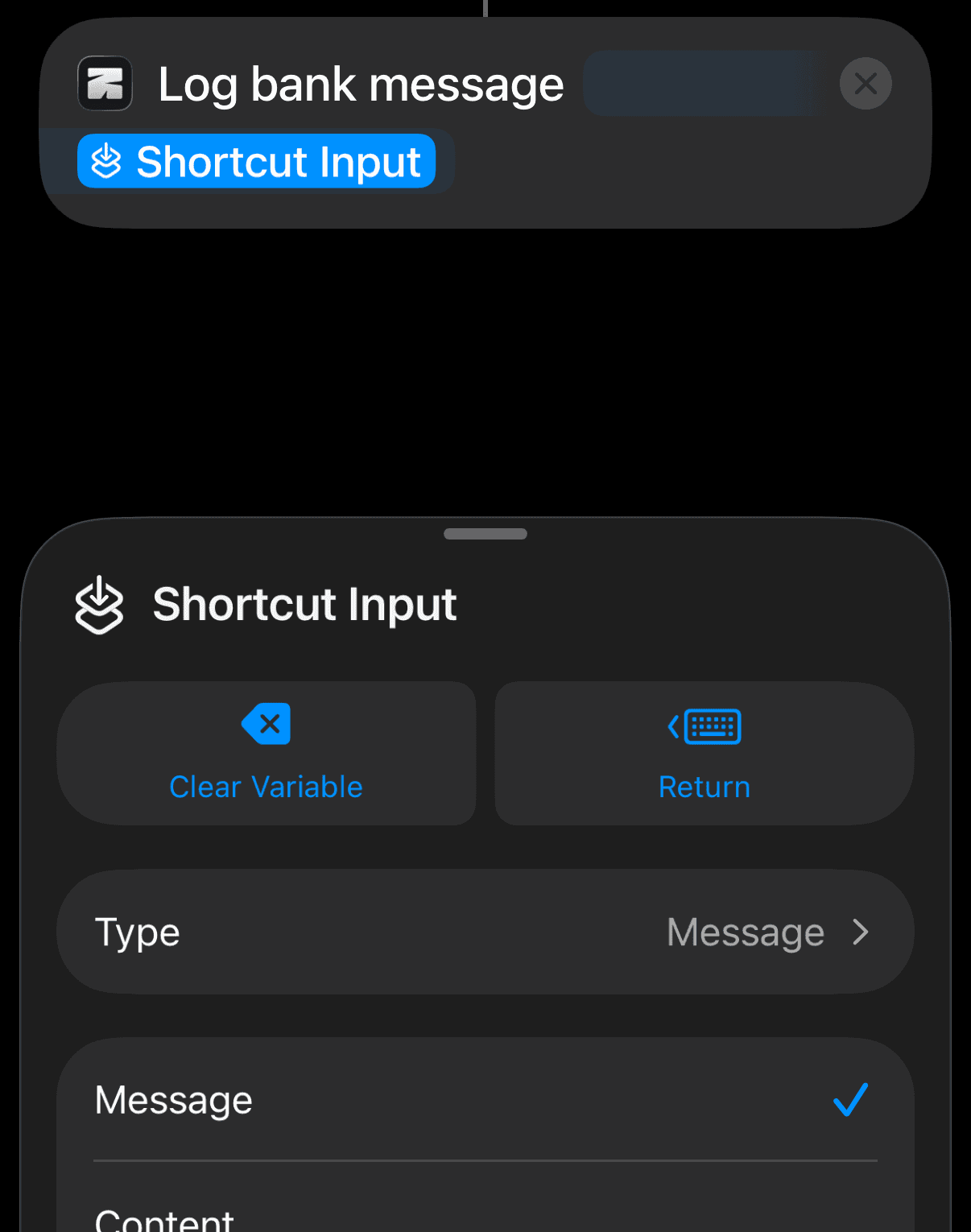
Tap the blue “Message” chip
In the menu that appears, choose Shortcut Input. (Empty box? Same thing — tap it, pick Shortcut Input.)
Make sure Type says “Message”
A panel opens and it should look like this. If Type doesn't say Message, tap Message in the list. Swipe the panel down.
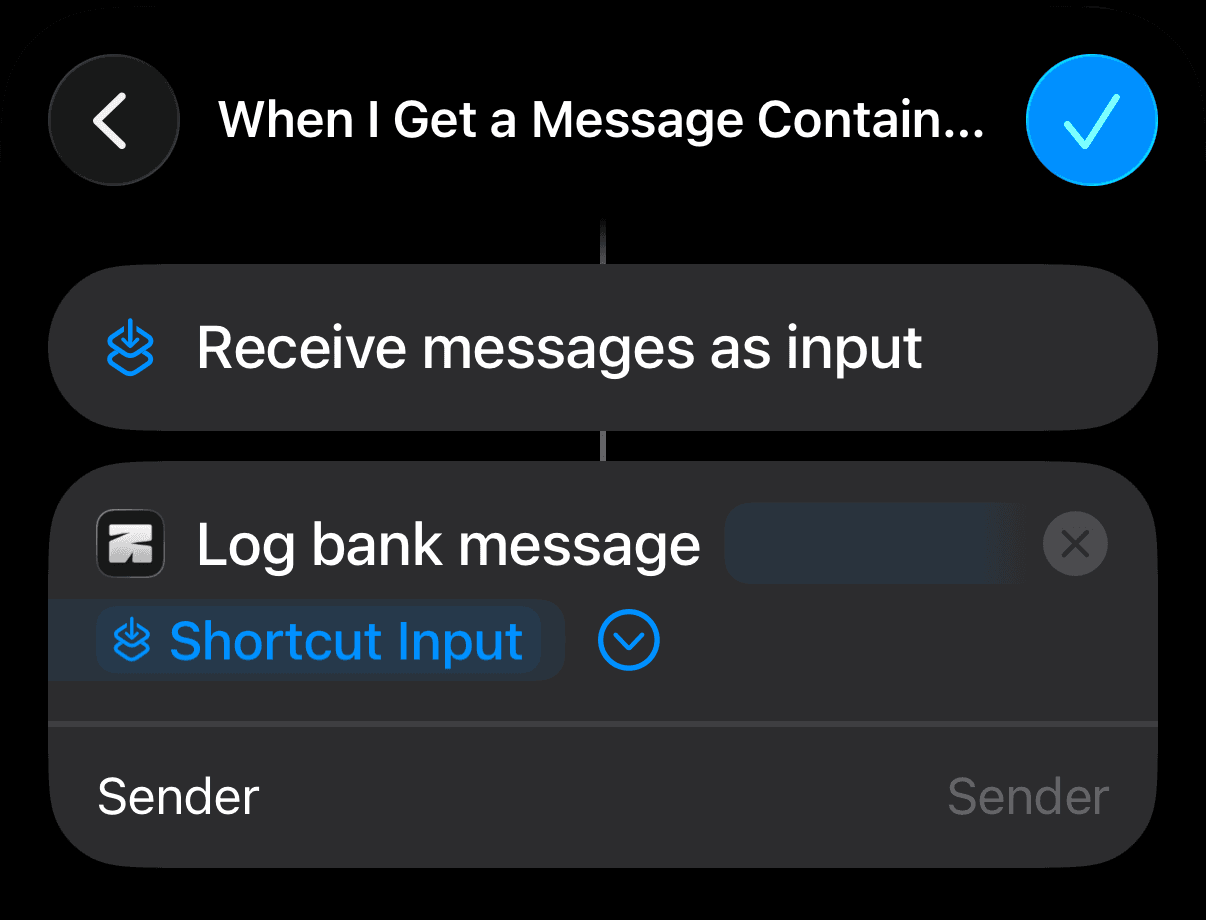
Now the Sender box
Tap the blue arrow under the chip, then the Sender box — choose Shortcut Input, same as before.
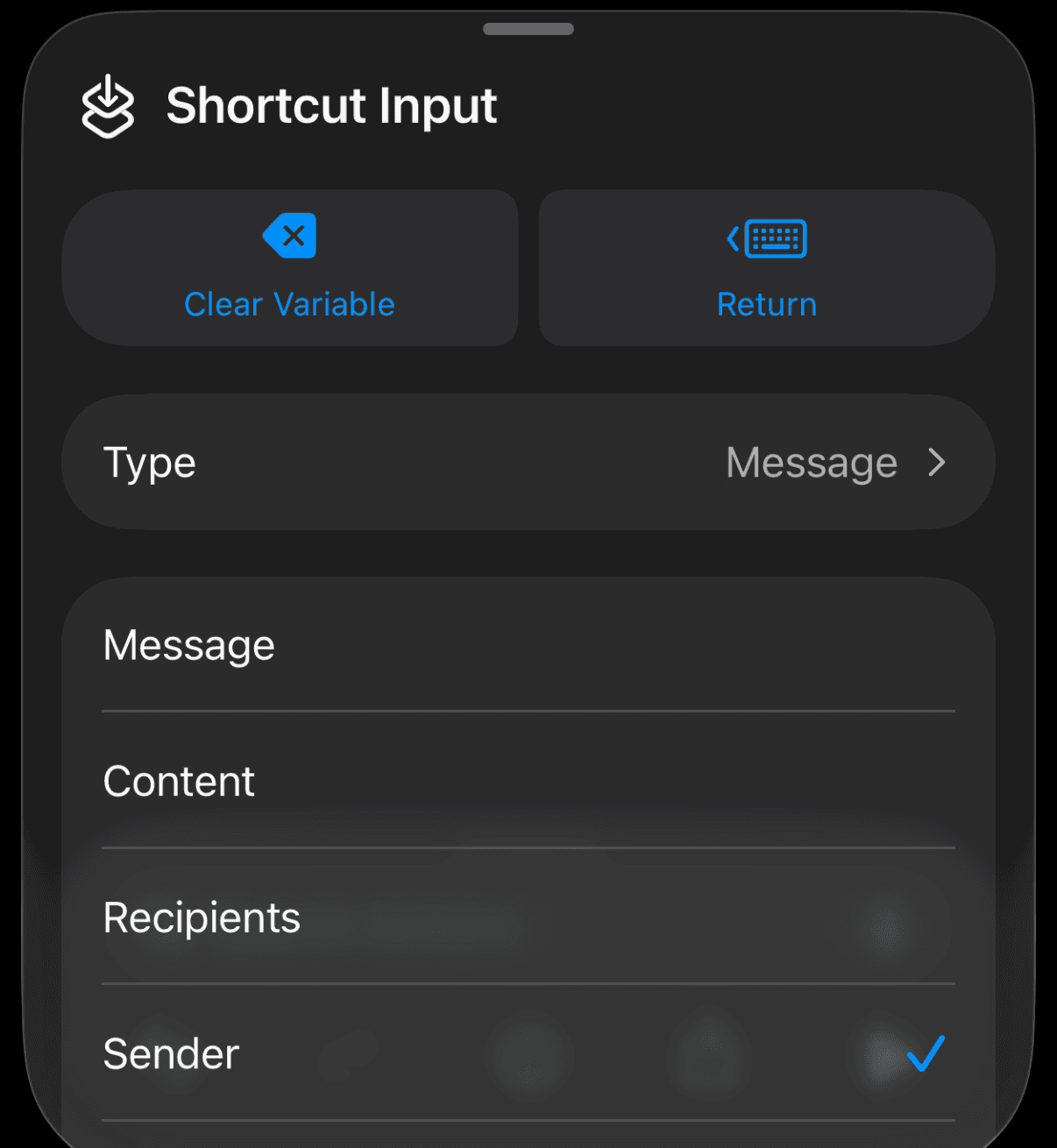
Set its Type to “Sender”
Tap the new chip, pick Sender in the list. This is what stops prank texts from counting as banks.
Tap the tick — you're done
Top right — that's the whole setup. Your next card purchase or transfer proves it: Zadd asks once whether the sender is really your bank, then files everything from it by itself.